
How to View Patient's Survey Responses
- From the patient roster, find the patient and click “View”. Alternatively, go to the patient's profile either from an email alert or the alerts dashboard if they've triggered an alert.

- Scroll down to the bottom of the patient profile to get to the survey tabs
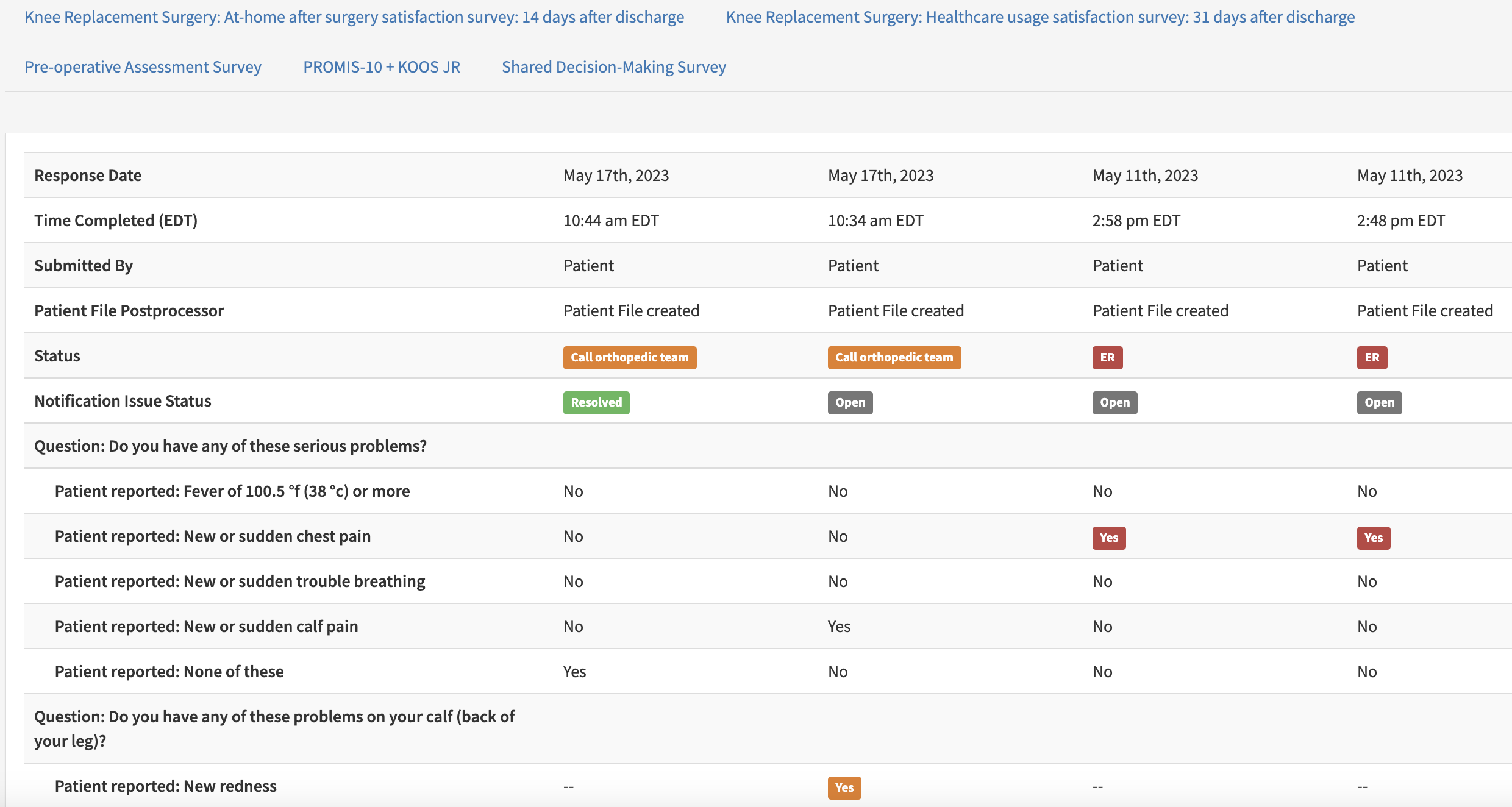
- You will see the patient survey responses, including the highlighted responses that contributed to the patient's status (i.e. Go to ER, Call Orthopaedic Team, etc)
-
Colour-coding helps indicate which patient responses contributed to the notification(s)
-
- Follow up with the patient as needed based on your internal escalation workflow.