
How to Resolve an Alert
- Go to the patient's profile either from the email notification, the patient roster, or the alerts dashboard.
- View the patient's survey responses, including any highlighted responses that contribute to the patient's status (e.g. Go to ER, Call healthcare team, etc.) Colour-coding helps indicate which patient responses contributed to the notification(s).
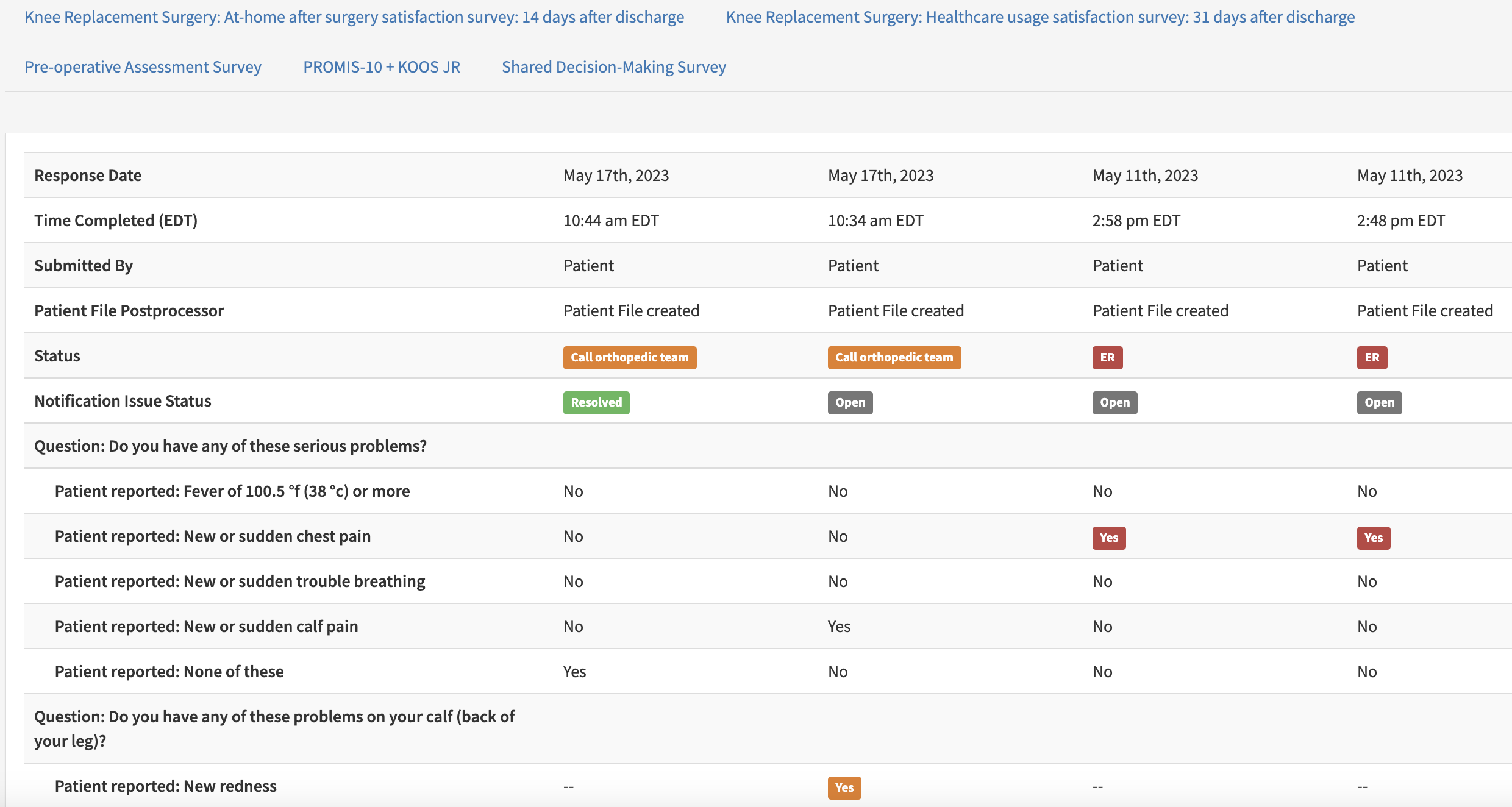
- Follow up with the patient as needed then click the 'Notifications/Issues' tab within the patient profile. It lists each of the notifications triggered for the patient.
- Select a status for the issue (open, in progress, or resolved).
- Note: Once changed to one of the ‘Resolved’ statuses, the status will remain editable for only 24 hours. After 24 hours, you will not be able to change or undo the status.

If you have any questions about alerts or the monitoring process, please reach out to your Customer Success Associate or Customer Success Manager or support@seamless.md.