
How to Export Data
Export patient engagement data, including patient information, survey responses, etc from the patient roster. Exports are downloaded as Excel spreadsheets.
How to Export Data
-
From the Patient Roster, click “Export” (top right corner of the roster).

- Select the care plan and version you want to export. If no care plans are selected, all care plans will be included.

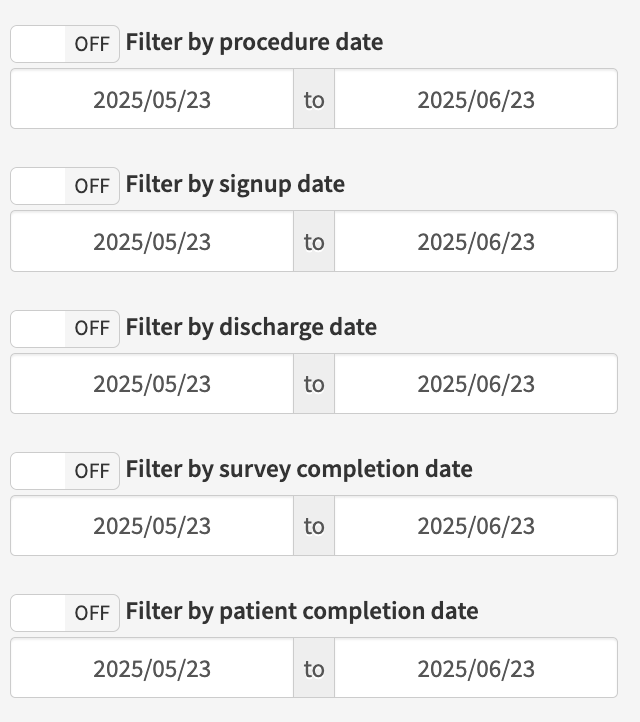
- Specify the type of date filter and the date ranges you would like to include in the export. If no date filter is turned on, all data (since launch) will be included in the export.
-
Note: the "Filter by surey completion date" includes data for patients who completed ANY survey in the time period selected
-
- Use the following toggles to adjust which patients/patient data is included in the export:
- Include demo patients: includes data from demo patients in the export
- Include opt-out patients: includes data from patients marked as opt-out in the export
-
Include PHI: includes additional columns with patient-identifying information in the export (e.g. name, MRN, surgery date)

-
Click “Download Data (.xlsx)” next to the report you would like to export.

- Your export request will appear at the top of the page. It may take 30+ minutes to prepare depending on the size of the report. Refresh the exports page after 30 minutes to see if it is available for download, and click “Download”.

- Refer to the legend below to help interpret the data, where the question has multiple answer options:
| Symbol | Definition |
| OK | No or “No issue indicated” |
| ! | Yes or “Issue indicated” |
| -- | No answer; patient was not asked the question |
| skipped | No answer; patient skipped the question |