
How To Edit Patient Care Plan & Notification Settings
Patients are not able to edit the information within their account other than their password. For this reason, patients are encouraged to email our support team at support@seamless.md to request account updates.
Can I edit patient information from the provider side?
Yes, you can edit the information within a patient's account after enrollment through the patient roster dashboard or the individual patient profile dashboard. This includes updating their name, email, procedure date, provider, patient characteristics, and notification preferences.
Please note that once a patient has been enrolled in a care plan, the care plan cannot be changed. If you need to change the patient's care plan (i.e. they were enrolled in the incorrect care plan), please reach out to support@seamless.md. Our team will delete the patient's account so that you can re-enroll them in the correct care plan.
What if my hospital is an integrated site?
If your hospital is an integrated site, the process for editing patient information may look different as you will likely be making edits directly from the EHR or booking system that is integrated with SeamlessMD. Please follow the instructions given to you by your Customer Success Associate (CSA) or Customer Success Manager (CSM) during your initial training session or reach out to your CSA/CSM for further information.
The screenshots and steps below will differ as the program could be displayed differently.
Steps to Edit Patient Enrollment Details
From Patient Roster Dashboard
- Select the 'Patients' tab at the top of your screen to ensure you are on the patient roster
- Locate the patient within the patient roster
-
Scroll to the right and click 'Edit' under the Actions column
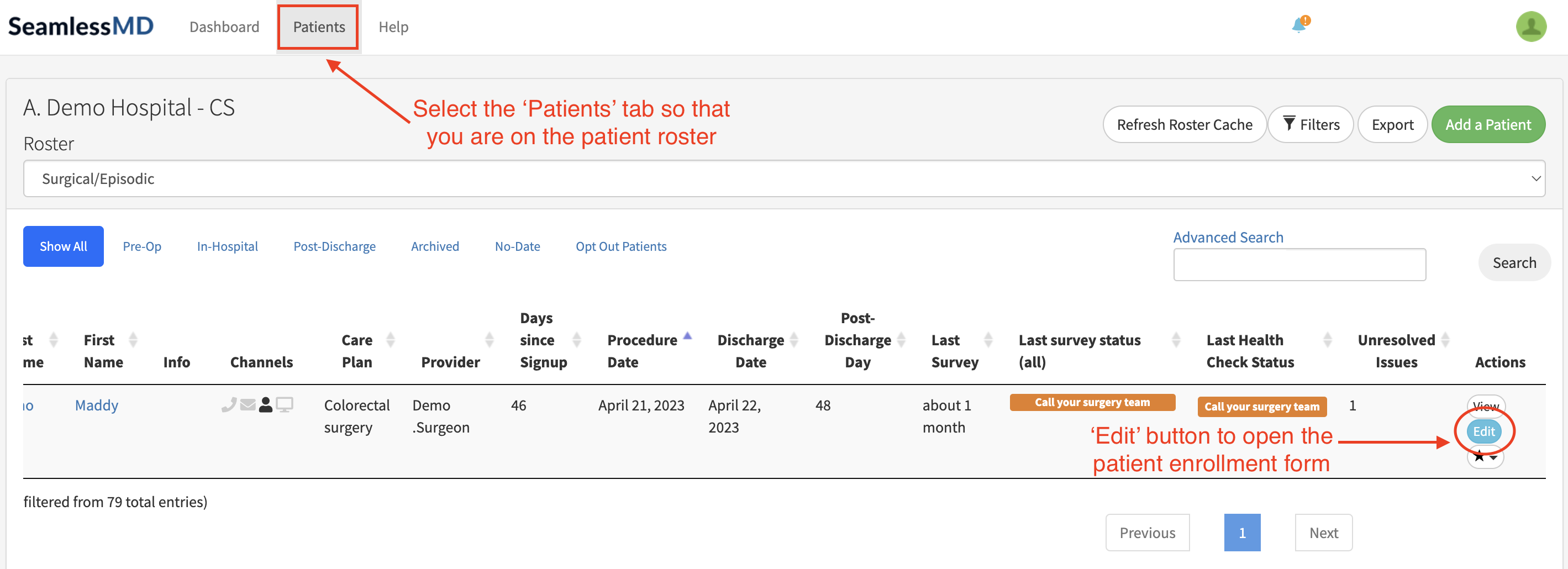
- This will open the enrollment form, which will allow you to edit the information within the patient account
- If you are looking to edit the procedure or discharge date within a patient's account, follow the steps above and select a new date and click 'Save'
-
To edit notification preferences, toggle on/off the corresponding options for Email or SMS Notifications
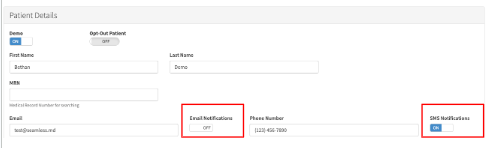
- Click "Save" at the bottom of the page when you are done updating the details.
From Patient Profile Dashboard
- Select the 'Edit Patient' button on the right of the dashboard
- This will open the enrollment form to edit the information within the patient account.
-
Follow the same steps above to edit the patient details.

